Symbolic Links or Symlinks in Linux
Symbolic links, commonly called symlinks, are a fundamental filesystem concept which is just advanced shortcuts. They are simple in idea, powerful in practice, and widely misunderstood by beginners. This article explains **what symlinks are, how to create them etc.
1. What Is a Symlink?
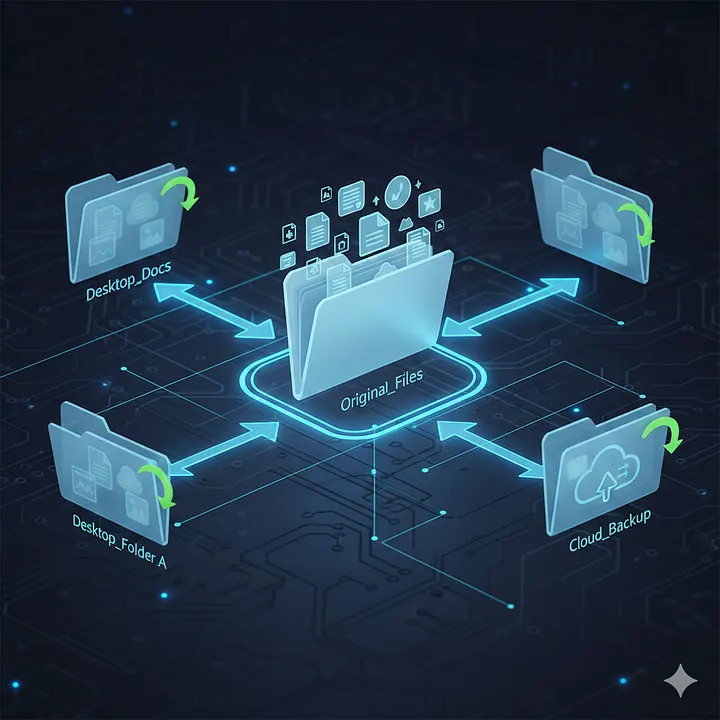
A symbolic link is a special type of file that points to another file or directory by storing its path.
Note that-
It is not a copy.
It does not contain the data of the target file.
It only contains a reference to the target’s location.
Think of it as:
- A shortcut (Windows analogy, but more powerful)
- A pointer
- A reference path stored as a file
Example
If this exists:
/home/user/projects/app/main.py
And you create a symlink:
/usr/local/bin/app -> /home/user/projects/app/main.py
Running app will execute main.py as if it were located there, even though the file physically lives elsewhere.
2. Symlink vs Hard Link
Before going further, one correction many people get wrong:
- Symlink: Points to a path
- Hard link: Points to the inode
This article focuses on symlinks, not hard links.
Key difference:
- If the target file is deleted:
- Hard link → still works
- Symlink → becomes broken (dangling link)
Note that- symlinks depend on the target path existing.
3. Creating Symlinks in Linux Using ln
The command used is ln.
Basic Syntax
ln -s TARGET LINK_NAME
or
ln -s /path/to/original /path/to/link
example for this:
ln -s /home/name/Downloads /home/name/Desktop
Where:
-s→ means symbolicTARGET→ the original file or directoryLINK_NAME→ the symlink you are creating
Example 1: File Symlink
ln -s /home/user/file.txt file_link.txt
This creates:
file_link.txt -> /home/user/file.txt
Accessing file_link.txt accesses file.txt.
Example 2: Directory Symlink
ln -s /var/www/project project_link
Now:
project_link -> /var/www/project
You can cd project_link like a normal directory.
Example 3: Using Absolute vs Relative Paths
Absolute path:
ln -s /home/user/scripts/run.sh run
Relative path:
ln -s ../scripts/run.sh run
Both work.
Absolute paths are safer when links are accessed from different locations.
4. How to Identify a Symlink
Use ls -l:
lrwxrwxrwx 1 user user 20 Jan 20 12:00 run -> /home/user/scripts/run.sh
Key indicators:
- Starts with
l - Arrow
->shows target
5. Why Use Symlinks?
Symlinks exist to solve structural and maintenance problems, not because Linux designers were bored.
1. Avoid Duplication
Instead of copying files:
- One real file
- Multiple references
This saves:
- Disk space
- Sync effort
- Update mistakes
2. Clean Project Organization
You can keep:
- Source files in one place
- Access points elsewhere
Example:
/opt/tools/mytool
/usr/local/bin/mytool -> /opt/tools/mytool
The system stays clean without moving files.
3. Version Management
Common in software installs:
java -> java-21
python -> python3.11
Change the symlink → change the active version
No need to rewrite scripts.
4. Configuration Management
Used heavily in:
- Web servers
- Dotfiles
- Deployment systems
Example:
/etc/nginx/sites-enabled/site.conf -> /etc/nginx/sites-available/site.conf
Enable or disable configs without duplication.
5. Cross-Directory Access Without Chaos
Symlinks let you:
- Keep logical structure
- Avoid physically moving files
- Maintain compatibility paths
This is critical in large systems.
6. Common Mistakes
- Deleting the target breaks the symlink
- The link still exists
- It just points to nothing
- Copying symlinks
- Some tools copy the link
- Others copy the target
- Always check behavior
- Overusing symlinks
- Too many links → debugging becomes harder
- Use them deliberately
Symlinks are a tool, not a crutch.
7. When You Should NOT Use Symlinks
Do not use symlinks when:
- You need guaranteed availability
- The target path is unstable
- You do not control the filesystem layout
Blind symlink usage leads to fragile systems.
And that is all,.Keep exploring, stay curious.
Copyright © 2026 Mahidul Haque. This post is licensed under a CC BY-NC-ND 4.0 license. You may read, learn, and share links to this post for non‑commercial, educational purposes, as long as you give appropriate attribution. You may not copy, reproduce, adapt, distribute, or use this work commercially without explicit permission.